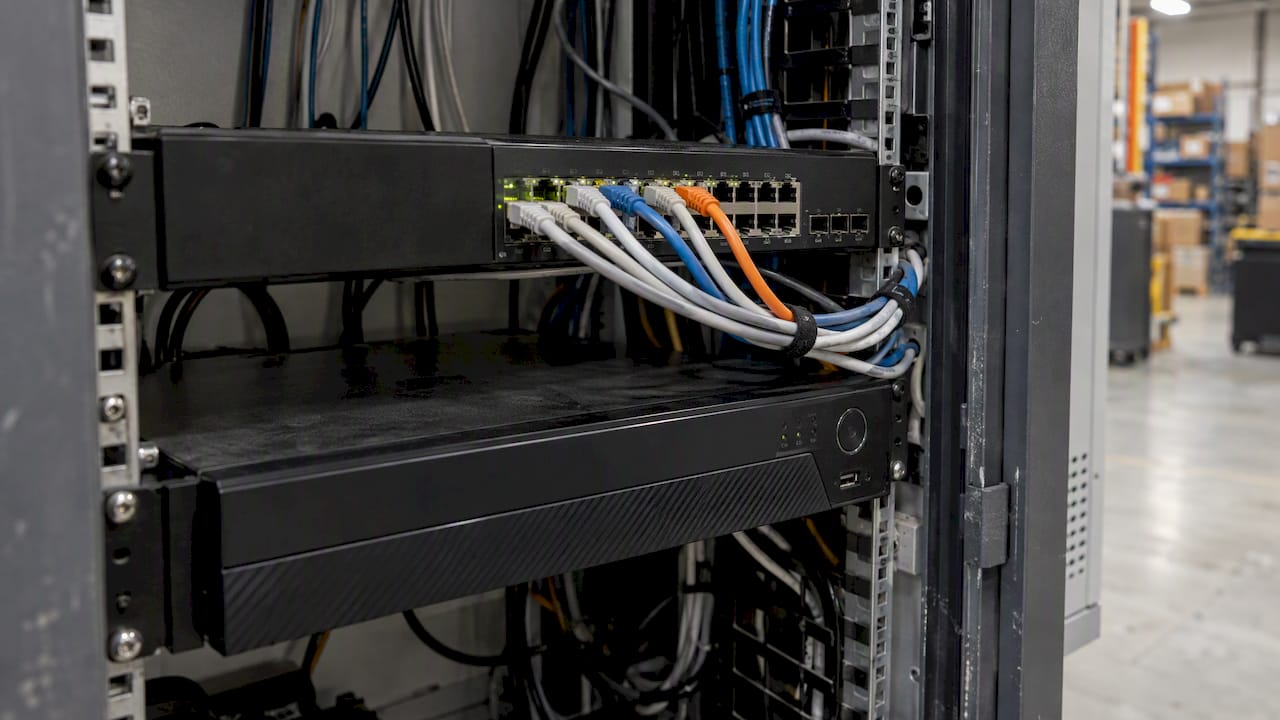
Most IP cameras use between 2 and 16 Mbps each, depending on resolution, codec and how busy the scene is. Your recorder network needs the sum of those streams plus headroom. Your internet connection only needs enough upload for the few streams you watch remotely. Keep those two paths separate in your thinking and the sums become simple.
This guide is for site managers, facility managers and business owners who are planning or auditing a camera system. It covers how to size the network, what NBN upload speeds can realistically carry, and the mistakes that cause dropped footage.
TL;DR
- Budget roughly 2 to 4 Mbps per 2 MP camera and 4 to 8 Mbps per 4 MP camera, depending on codec (H.265 uses far less than H.264). Treat these as indicative figures and confirm them on your own cameras.
- Add up the cameras that record to your NVR on the local network, then keep switch uplinks and recorder load below 70 to 80% of rated capacity.
- Remote viewing uses your internet upload speed, not your local network. Use low-bitrate substreams and most small systems fit within a standard NBN plan.
- Scene activity often drives bandwidth more than resolution does.
- Bandwidth is only half the job: retention, privacy and monitoring decide whether the footage is useful.
Table of Contents
- What bandwidth means for a camera system
- Typical bandwidth per camera
- Why scene activity matters more than resolution
- Worked example: 16 cameras on one site
- What your NBN connection can carry
- Is more bandwidth better?
- Common bandwidth mistakes on commercial sites
- Perspective: how we plan bandwidth
- Bandwidth is not the only legal and practical question
- When to bring in a professional
- How ABCO Security can help
- FAQ
- Sources
What bandwidth means for a camera system
Bandwidth is the amount of data moving per second, measured in megabits per second (Mbps). Every IP camera continuously streams compressed video across switches into a recorder, and often out to the internet for remote viewing. Planning guides for installers warn that without proper bandwidth planning, systems can suffer from lost or unstable footage.
The Fortinet white paper on IP surveillance goes further. It puts bandwidth planning among the most critical design steps in a video project, similar in importance to deciding where the cameras go.
There are two separate pipelines to size:
- Camera to recorder (local). Every camera’s recording stream travels over your cabling and switches to the NVR. This is usually the larger number.
- Recorder to viewer (remote). Only the streams you actually open on a phone, laptop or monitoring centre travel over the internet.
The NVR acts as a buffer between the two. You can record at high quality locally while serving a smaller substream for remote viewing, which protects your upload speed during live viewing.
Typical bandwidth per camera
The figures below come from a public bandwidth calculator and are described there as indicative: 25 frames per second, medium quality, per camera. Your real bitrate depends on settings and scene.
| Resolution | H.264 | H.265 |
|---|---|---|
| 2 MP (1080p) | 4.0 Mbps | 2.2 Mbps |
| 4 MP | 8.0 Mbps | 4.4 Mbps |
| 5 MP | 10.0 Mbps | 5.5 Mbps |
| 8 MP / 4K | 16.0 Mbps | 8.8 Mbps |
Two things to take from this table. First, H.265 cuts the load by close to half on the same picture quality, which is why we favour it where the recorder supports it. Second, a 4K camera is not four times the bandwidth of a 2 MP camera in practice, because compression and settings can narrow the gap.
Why scene activity matters more than resolution
A common assumption is that a higher-resolution camera always needs more bandwidth. Modern H.264 and H.265 compression works on the changes between frames, so a busy scene costs more than a quiet one. A high-resolution camera pointed at a blank wall can use far less than a lower-resolution camera watching tree branches, rain or a busy entrance.
This matters on real sites:
- Construction sites: dust, rain, swinging fencing wraps and constant machinery movement push bitrates up. A camera that looks fine on a quiet Sunday can double its load on a working day.
- Retail floors and entrances: constant foot traffic keeps cameras at the top of their bitrate range.
- Car parks and loading docks: headlights at night create noise that raises bitrate. Aim cameras away from trees and swaying signs where you can.
- Healthcare corridors and offices after hours: often very static, so bitrates stay low, which suits motion-based recording.
The practical advice: when you plan, measure a sample of cameras during the busiest part of the day, not a quiet test hour.
Worked example: 16 cameras on one site
Take a mid-sized warehouse with sixteen 4 MP cameras recording on H.265.
Step 1: local recording load. Using the indicative 4.4 Mbps per camera from the table above, 16 cameras come to about 70 Mbps arriving at the NVR.
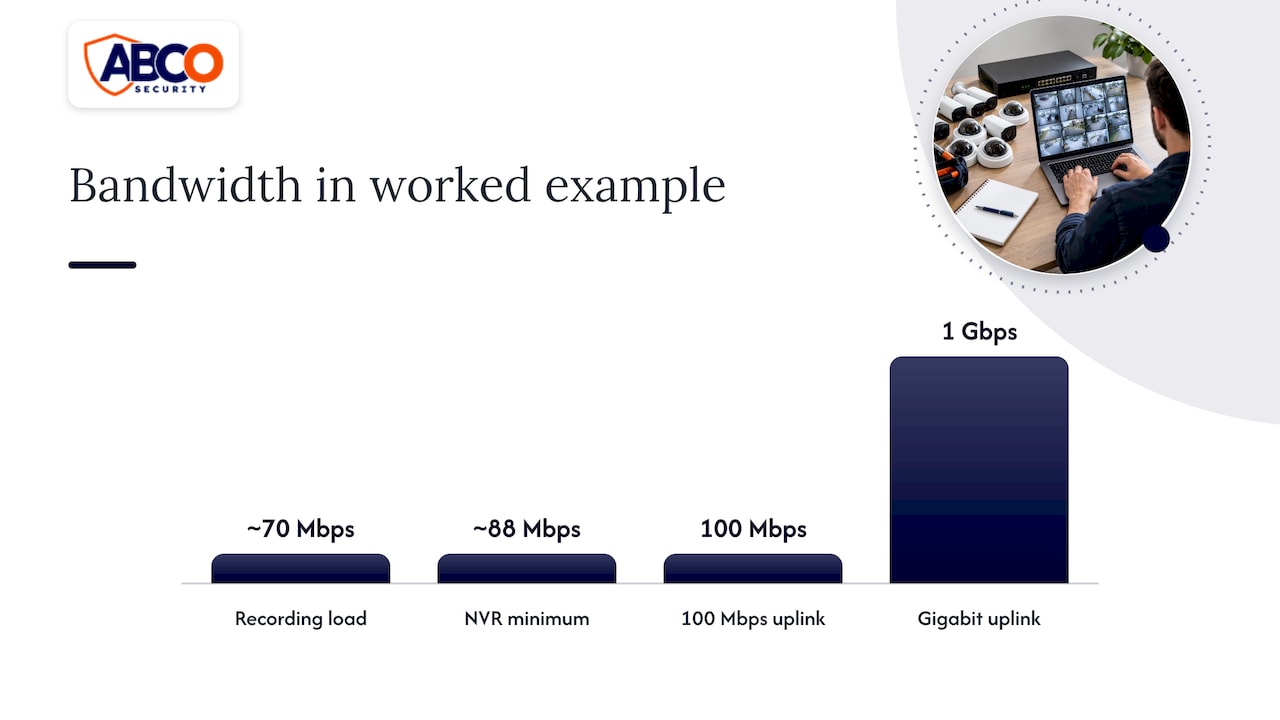
Step 2: headroom. Operating at full capacity leads to dropped frames and unstable recordings. The same planning source recommends keeping NVR recording load below 80% of rated throughput and switch uplink use below 70 to 80%. So 70 Mbps should sit on a link and recorder rated for at least about 88 Mbps. A gigabit uplink handles this comfortably. A 100 Mbps uplink would be a problem.
Step 3: storage. 70 Mbps is roughly 8.8 megabytes per second. Over 24 hours of continuous recording that is around 760 GB a day, or about 23 TB for 30 days. Motion-based recording, lower frame rates at night and smart codecs reduce that, but plan the disks for the worst case. This is our own arithmetic, so check it against your recorder’s calculator.
Step 4: remote viewing. If a manager wants to see four cameras at once on a phone using substreams of 0.5 to 1 Mbps each, that is 2 to 4 Mbps of upload, a small fraction of what the recording path carries.
The lesson: the recording network is where the big numbers live, and it sits entirely inside your building. It does not touch your NBN connection.
What your NBN connection can carry
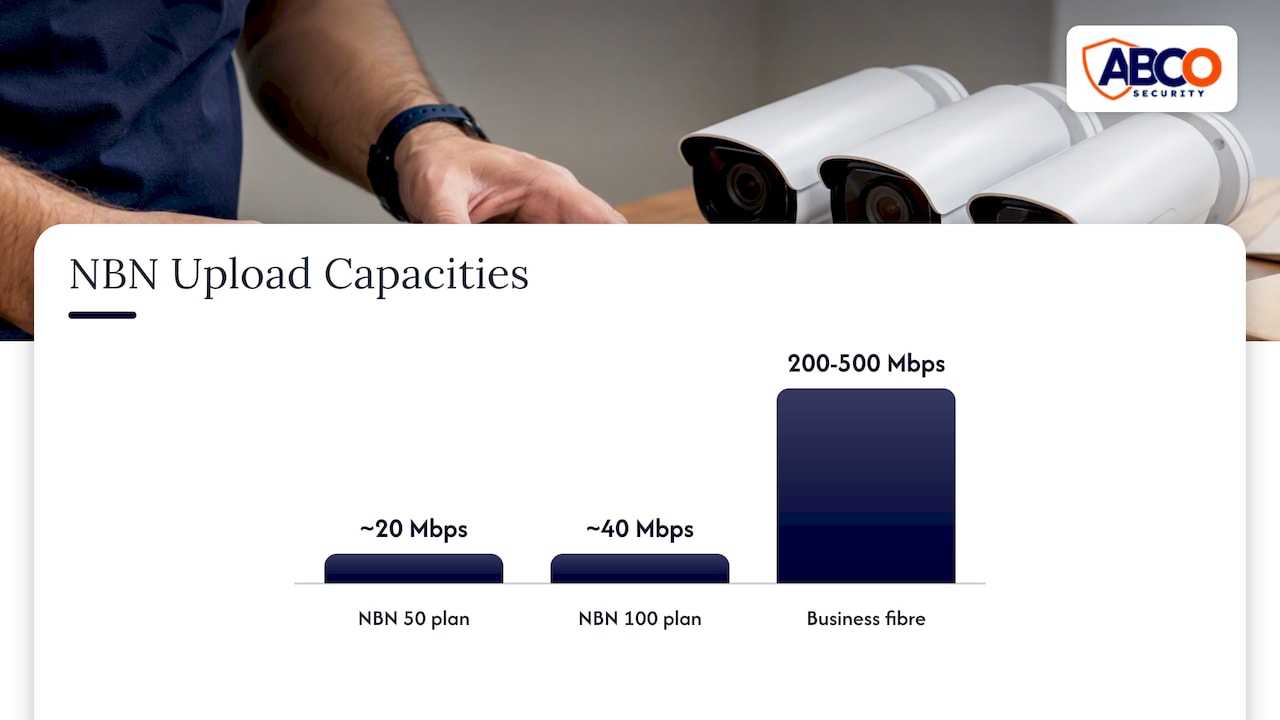
Remote viewing, cloud backup and offsite monitoring all use upload speed, which is usually the slowest part of a connection. According to nbn’s business plan information, typical NBN 50 plans provide around 20 Mbps upload and NBN 100 plans around 40 Mbps. Business-grade fibre to the premises can reach 200 to 500 Mbps upload. Confirm current plan speeds with your provider, as they change.
A rough guide for remote viewing:
| Scenario | Upload needed | Suits |
|---|---|---|
| 4 to 8 cameras, substreams only (0.5 to 1 Mbps each) | Up to roughly 8 Mbps | A standard 20 Mbps upload plan |
| Several main streams viewed at once | Tens of Mbps | NBN 100 level upload or better |
| Continuous cloud upload or monitoring of many cameras | Sum of all uploaded streams | Business-grade fibre |
The substream range comes from the same planning logic: 4 to 8 cameras on substreams typically fit within a 20 Mbps upload, while high-resolution main stream viewing needs more capacity. If you want to test your own line, an upload calculator built for Australian NBN connections recommends substream settings and shows when your connection becomes the bottleneck.
If your remote viewing is choppy, check these in order:
- Is the app pulling main streams instead of substreams?
- Is anything else saturating the upload, such as cloud backups during business hours?
- Does your actual upload speed match the plan? Test it at the router, not over Wi-Fi.
- Is the router or Wi-Fi the weak link? Our partner-free advice: wired cameras and a properly configured business network matter. This Australian small business guide to Wi-Fi setup is a useful reference for the network side of a professionally installed system.
Is more bandwidth better?
No. Experts note that excess bandwidth often signals inefficient compression settings or needless motion triggering. It wastes storage and network capacity without improving security outcomes. Good design aims for quality per bit, not the biggest number.
Levers that lower bandwidth without hurting evidence quality:
- Use H.265 where the recorder and viewing software support it.
- Cap the frame rate sensibly. Entrances and tills may justify 25 fps; a perimeter fence rarely does.
- Use variable bitrate with a ceiling rather than constant bitrate.
- Set motion zones to ignore trees, roads and flags.
- Run two streams per camera: a high-quality recording stream and a light substream for viewing.
Avoid the opposite error too. Squeezing quality until faces and number plates are unreadable defeats the purpose of the system. Standards such as AS/NZS 62676.4:2020 give recommendations for the selection, planning, installation, commissioning and testing of video surveillance systems, and AS/NZS 62676.1.1:2020 covers general system requirements. Ask your installer how the design relates to them.
Common bandwidth mistakes on commercial sites
Sizing from the box rating. A camera’s maximum bitrate is not its average. Size to measured peaks.
Daisy-chaining switches on a 100 Mbps link. A handful of 4 MP cameras can fill it. Use gigabit uplinks as standard.
Mixing camera traffic with the office network. Put cameras on their own VLAN or switch so a large file transfer cannot starve the recorder.
Forgetting firmware updates and spikes. That is part of why the 70 to 80% ceiling exists.
Ignoring PoE power budgets. Bandwidth is one limit; switch power is another. Our comparison of PoE and wireless cameras over five years explains why wired is usually the stronger choice for business sites.
Relying on Wi-Fi cameras across a large site. Wireless links share airtime, so each additional camera cuts the reliable bitrate for the rest.
Perspective: how we plan bandwidth
We treat bandwidth as a design input, not an afterthought. On construction sites, in healthcare facilities and across corporate offices, the cameras that cause trouble are rarely the high-resolution ones. They are the ones pointed at the busiest, noisiest part of the scene, on a link nobody sized for peak load.
Our approach is to start from what the footage has to prove: a face at the gate, a plate at the dock, a tool leaving a container. We then work back to resolution, frame rate and codec, and only then to switches, storage and upload. A system that records everything at maximum quality but falls over during a firmware update fails at its one job.
We also keep recording and remote viewing apart, because a monitoring operator watching live should never be able to disrupt local recording. And we plan for the people behind the cameras: footage that no one is watching only helps after the event. That is why we pair installation with camera monitoring, licensed guards and mobile patrols, so alerts get a human response rather than sitting on a disk.
— Abco
Bandwidth is not the only legal and practical question
Getting the network right does not finish the job. The Office of the Australian Information Commissioner (OAIC) has said that surveillance is not a set and forget technology. Transparency, proportionality and necessity apply, and obligations extend to how footage is stored, protected and destroyed. Longer retention means more storage and more data to protect, so retention periods are a bandwidth and storage decision as well as a privacy one.
If your cameras use facial recognition, the rules tighten. The OAIC treats biometric information, including facial images, as sensitive, and its guide to assessing facial recognition privacy risks says use must comply with the Australian Privacy Principles. Speak to a privacy lawyer before switching it on.
Other rules depend on your state. Employers should read our guides to NSW workplace surveillance laws and Victorian workplace surveillance obligations, and our overview of CCTV laws in Australia.
When to bring in a professional
A four-camera shopfront can be sized on a calculator. Bring in a licensed installer when you have any of these:
- More than about 16 cameras, or several buildings on one network
- Remote monitoring by a control room
- A temporary or changing site such as construction
- Mixed old analogue and new IP equipment
- Cameras that must support evidence-grade identification
For background on system types, see our guides to commercial video security systems, CCTV for security in Australia and CCTV installation.
How ABCO Security can help
ABCO Security designs, installs and monitors CCTV and alarm systems for construction, healthcare, corporate, retail and other sites across Australia, backed by 24/7 monitoring, licensed professionals and more than 15 years in the industry. Our electronic security solutions cover the cameras, cabling and network design, and our CCTV and alarm monitoring keeps someone watching when you cannot. Our Night Owl service starts from $5.45 per day, with details on the Night Owl page. For a site-specific quote, contact us through our website.
FAQ
What are the bandwidth requirements for a CCTV camera?
It depends on resolution, codec, frame rate and scene. As a rough indication, a 2 MP camera uses about 2.2 Mbps on H.265 and 4 Mbps on H.264, and a 4 MP camera about 4.4 and 8 Mbps respectively, according to one public calculator. Measure your own cameras at peak activity before you size anything.
Does CCTV use a lot of internet?
Only if you stream it out of the building. Recording to a local NVR uses your internal network, not your internet plan. Remote viewing on substreams uses little upload, while viewing main streams or uploading to the cloud needs much more.
Is 30 Mbps enough for CCTV?
For remote viewing of a small system, usually yes if that is your upload speed and you use substreams. Many NBN plans have far lower upload than their headline download, so check the upload figure. For local recording of many cameras, internet speed is irrelevant and the switch and NVR ratings matter instead.
Is higher bandwidth good or bad?
Neither on its own. High bandwidth can mean sharp footage of a busy scene, or it can mean poor compression settings and wasted storage. The aim is enough quality to identify what you need at the lowest sensible bitrate.
Sources
- CCTV Bandwidth Planner, Security Wholesalers
- Understanding IP Surveillance Camera Bandwidth, Fortinet
- nbn Business Wholesale Speed Plans
- CCTV Bandwidth Calculator, MEPBase
- CCTV remote viewing upload calculator, InFronttech
- AS/NZS 62676.4:2020, Standards Australia
- AS/NZS 62676.1.1:2020, Standards Australia
- Office of the Australian Information Commissioner
- Facial Recognition Technology: a guide to assessing the privacy risks, OAIC
Recommended
about
avada factory
Sempery ultricies nibh at dolor cras urna eleifend nec. Atiam efficitur tempor.