It's after hours, a loading-dock alert reaches your phone, and the camera app opens to a spinning wheel. You don't know whether someone's entering the building, whether the recorder's still working, or whether anyone else has received the alert.
That's the practical challenge with remote viewing security cameras. Getting a picture onto a phone is only part of the job. Facility managers need a system that controls who can view footage, assigns responsibility when something happens, and has a workable fallback when the connection fails.
How Remote Viewing Works and Which Setup Fits
Remote viewing means watching live or recorded camera footage from a phone, browser or control room away from the site, with permissions set by your organisation. Think of the remote viewer as a security desk in another building holding a key to your filing cabinet. The important question isn't just whether the key works, but who holds it and what they can remove.
The system needs cameras, a recording destination, a communications path and an authenticated viewing platform. Those components can sit mostly onsite, mostly in the cloud, or across both.
Remote viewing architectures compared
| Architecture | Where footage is stored | Remote access route | Main trade-off |
|---|---|---|---|
| On-premises recorder | Local recorder, an NVR or DVR, at the site | Via VPN or secure gateway into the site network | Can offer the lowest ongoing cost, but you own uptime, backups and patching |
| Cloud-managed | Provider servers, usually in a stated region | Browser or app, with no inbound ports needed in a suitable managed design | Fast multi-site access and managed updates, but ongoing subscription and dependence on upload bandwidth |
| Hybrid | Local recorder with encrypted copy to cloud | App or web portal, with local playback during internet outages | Keeps recording through internet outages, with higher setup complexity |
An on-premises recorder gives your organisation direct control over storage. It suits sites with capable IT support, but someone must own disk health, recorder updates and recovery arrangements.
A cloud-managed system makes central access easier, particularly across separate properties. Confirm whether the quoted service includes continuous recording, event clips or remote access only, because those aren't interchangeable.
A hybrid system retains footage locally while providing cloud-based access or backup. Local playback during an internet outage still requires working cameras, power, storage and a local viewing connection.
Choose around the site's constraints
Use these checks before choosing equipment:
- Site count: Consider how operators will move between properties without confusing camera locations.
- Upload capacity: Measure available upload bandwidth at the times remote access will be used.
- Outage tolerance: Decide what must continue when internet access disappears.
- IT ownership: Name who maintains firmware, networking, certificates and storage.
Say a poorly connected site needs authorised viewers in Melbourne, Sydney and Brisbane. I'd favour assessing a hybrid arrangement with local recording first, rather than making evidence capture entirely dependent on that connection.
Camera connectivity is a separate decision from recording architecture. A PoE versus wireless camera comparison helps distinguish cabling and power choices from cloud access. Your architecture then determines where access restrictions must operate and what responders can retrieve during an interruption.
Set Up Remote Viewing Step by Step
Start with a site plan and a commissioning record, not the app download. The installer, IT administrator and facility manager should agree on the intended outcome before anyone enables outside access.
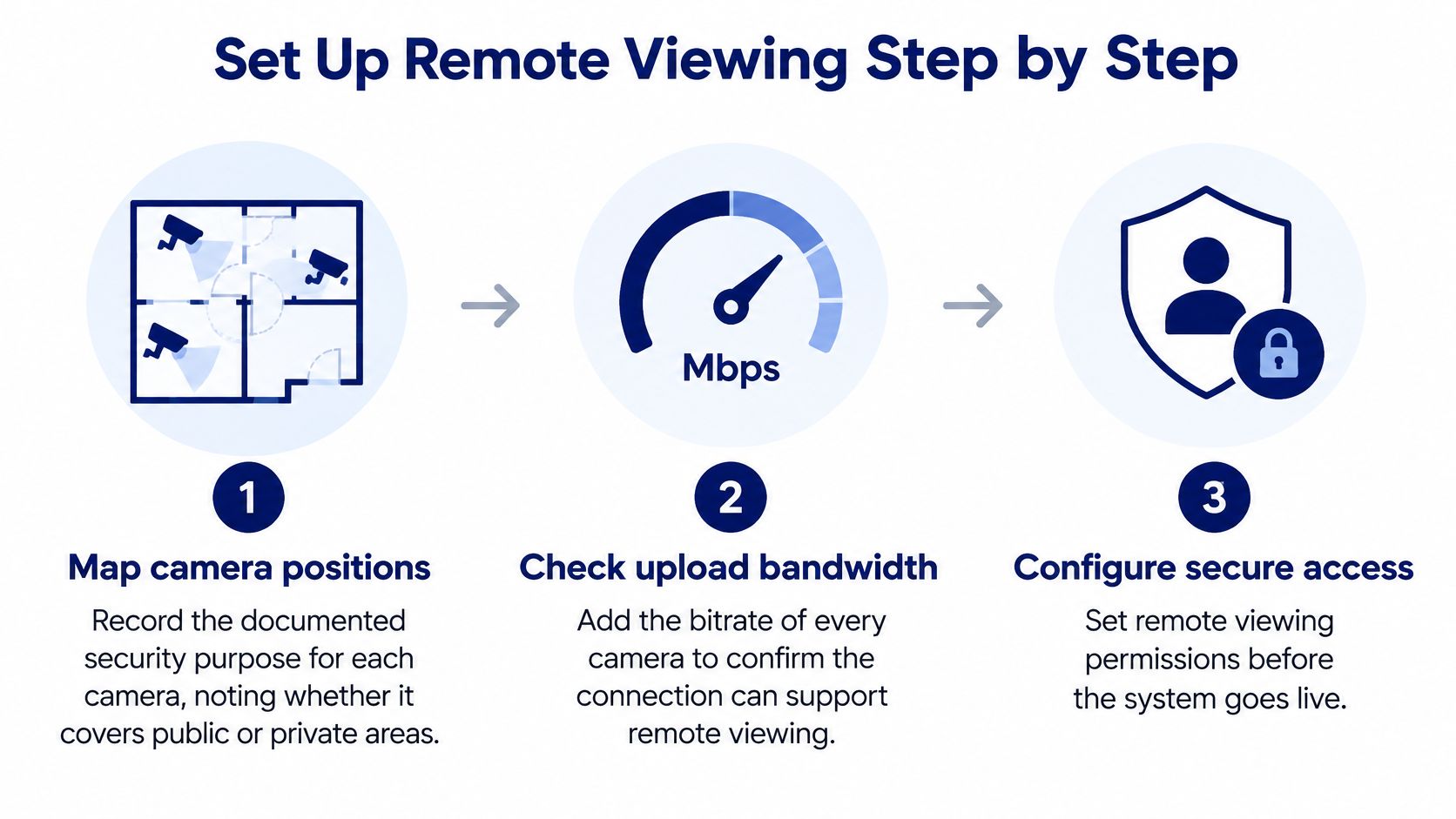
This process overview separates camera planning, connection capacity and access configuration.
Commission the system in a controlled order
Map camera positions and purposes. Mark each field of view on the site plan and document its security purpose, such as verifying stockroom entry. Identify public areas, neighbouring properties and private spaces before mounting equipment.
Calculate upload demand. Add the configured bitrates of streams that will leave the site, including cloud recording and simultaneous remote sessions. As an illustrative design allowance, keep planned demand below about 70 per cent of rated upload speed, then validate against measured peak-time performance rather than treating the advertised speed as guaranteed.
Separate the camera network. Assign reserved or fixed addresses and place cameras on a dedicated network or VLAN. Have IT apply firewall rules so camera devices can't freely reach office systems, while preserving required recording, time synchronisation and management connections.
Configure recording and time. Set each camera's storage period according to the approved retention schedule. Select the correct Australian local time zone, account for daylight saving where applicable, and synchronise cameras and recorders to a trusted time service.
Protect streams and recordings. Replace default passwords and enable supported encryption for transmission and storage. Check that encryption remains active during export and backup, rather than assuming the app protects every copy.
Create accountable access. Use named accounts, role-based permissions, multi-factor authentication and automatic session timeouts. Test a lower-privilege account quarterly to confirm that prohibited cameras, exports and administrative functions remain blocked.
Test outside the network. Use a managed device on mobile data or another approved connection to test live viewing, playback and export. A successful connection on the building's Wi-Fi doesn't prove remote access works.
Tune detection zones. Exclude irrelevant footpaths, roads and neighbouring properties from motion detection where appropriate. Test daylight and night settings separately because shadows, headlights and infrared reflections produce different results.
Complete the site register. Record devices, firmware versions, account holders, network ownership and the retention schedule. Include support contacts and configuration backups so another authorised technician can recover the system.
Use the CCTV bandwidth requirements guide to organise the capacity discussion. Lower-bandwidth viewing sub-streams can make routine checks practical without reducing the quality of locally recorded evidence.
Acceptance test: Set a commissioning target, for example, an off-site viewer loads live video within five seconds, plays back a recorded event and generates an identifiable access-log entry. Record the actual result and investigate failures before sign-off.
Lock Down Access and Privacy Before Go-Live
A strong password isn't enough. Remote access creates account, device and transmission pathways, so a legitimate login on an unmanaged phone can expose footage even when nobody compromises the camera itself.
Treat the viewing platform as a controlled business system, not a convenient shared app.
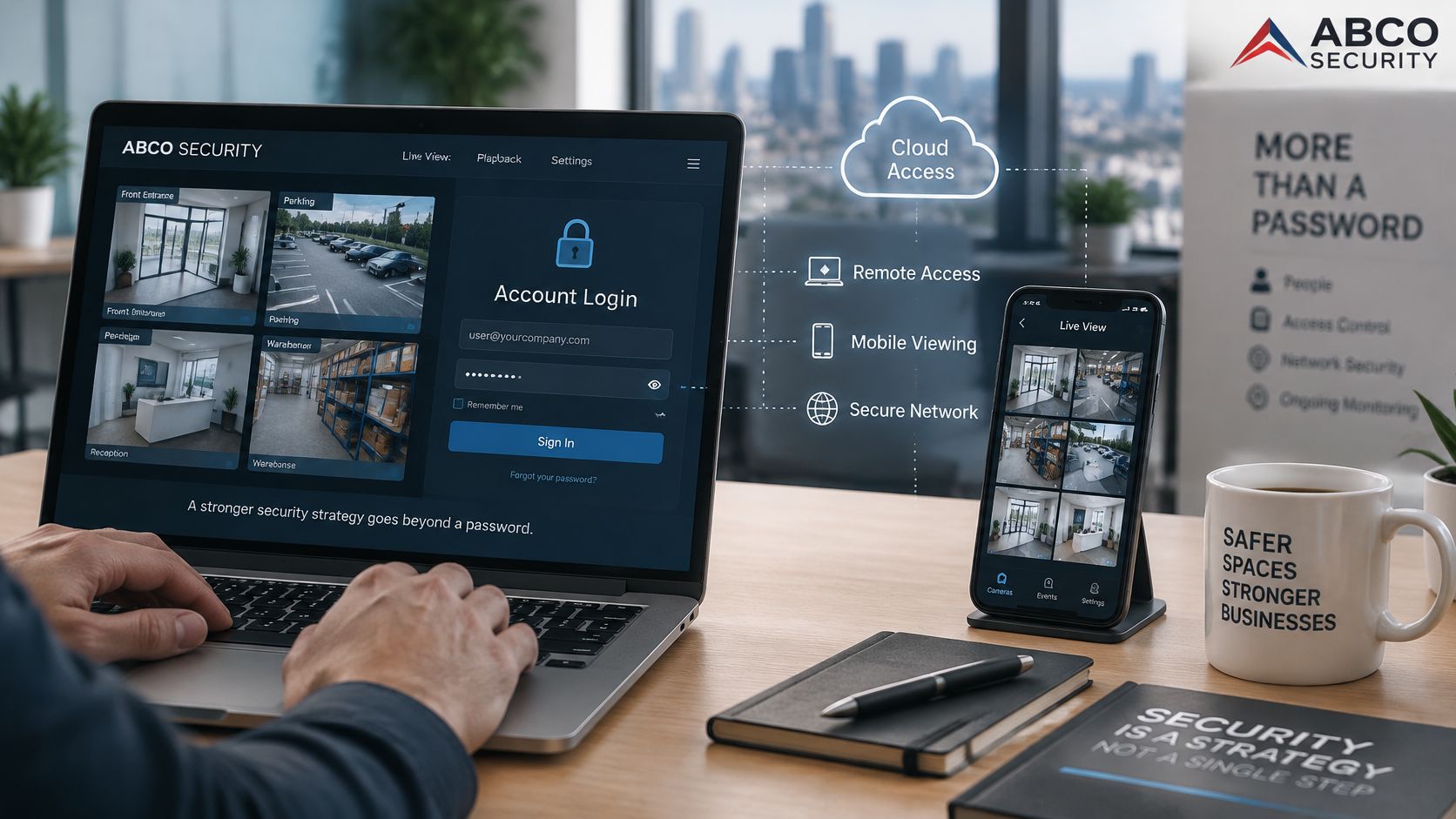
The Queensland Office of the Information Commissioner recommends access limited to personnel who require it, formal footage-request and disclosure procedures, access audit records, and encryption or access controls appropriate to how recordings are transmitted and stored. Those recommendations connect cybersecurity directly with the privacy of employees, visitors and contractors.
Separate viewing from copying
Build a permissions matrix around tasks, not seniority. A manager doesn't automatically need access to every property or permission to download recordings.
- Concierge Security: Reception personnel can view lobby and entrance cameras without exporting footage or changing recorder settings.
- Construction Security: A site manager can inspect live perimeter feeds without downloading clips to a personal phone.
- Incident investigation: A designated investigator can retrieve approved footage, with the reason and export recorded.
- Technical administration: An administrator can maintain the platform without using unrestricted footage access for unrelated purposes.
Apply VPN or zero-trust access, encrypted transport, segregated camera networks and centralised logging to support those roles. Don't expose a recorder directly to the public internet because port forwarding makes the demonstration easier.
A video resource can support the discussion, but the site's written permissions matrix should remain the operational reference.
Control the device as well as the account
Require managed phones and laptops for operational viewing. Where the platform supports it, block saving footage to the camera roll, restrict local downloads and enable remote wipe of organisational data.
Document residual limitations. If the app can't prevent screenshots, don't describe screenshot protection as an implemented control; restrict device use and establish a clear handling policy instead.
Make log review a monthly operating task, with attention to unusual locations, bulk exports and access outside a person's duties. Revoke access on the day someone leaves, including active sessions and delegated integrations.
Use a written data privacy and security measures framework to allocate responsibility between facilities, IT and management. Each control needs an owner, evidence that it works and a process for dealing with exceptions.
Compliance, Signage and Workplace Monitoring Rules
A camera that records lawfully can still create liability when the wrong person watches the feed. Compliance sits with who holds viewing rights, where cameras point and how footage leaves the system.
Where the Privacy Act 1988 applies, expect obligations around notifying people their images are being captured, securing recorded personal information, and destroying or de-identifying it once it is no longer needed. Coverage depends on the entity, so confirm the position for each business rather than assuming every employer operates under identical rules.
State and territory surveillance and workplace laws can add requirements on top. A portfolio covering Melbourne, Sydney, Brisbane, Perth and Adelaide needs jurisdiction-specific review, not a single policy copied between buildings.
Document the purpose before recording
Give each camera a defensible purpose, such as protecting reception staff or investigating stockroom theft, and position it to serve that purpose. Use privacy masking where the platform supports it, and display visible signage at entrances before people enter the monitored area.
Don't install cameras in toilets, showers, change rooms or fitting rooms. Check incidental views through doors, mirrors and adjoining windows, not just the camera's central image.
The OAIC's workplace monitoring guidance explains that the Privacy Act doesn't specifically regulate workplace surveillance and that employers must comply with applicable state or territory laws. Keep security incident investigation separate from routine performance monitoring, and record the necessity and staff communication behind each camera before anyone outside the security function receives viewing rights.
Sign off the legal and disclosure arrangements
Work through this checklist alongside the practical Australian CCTV laws guide:
- Jurisdiction checked: Record the applicable surveillance, workplace and privacy requirements.
- Purpose approved: Confirm camera placement and staff notices match the documented security need.
- Signage installed: Check entrances and alternative access paths.
- Disclosure authorised: Name who approves police, insurer and other third-party requests.
- Release recorded: Log the recipient, authority, reason, footage scope and transfer method.
- Licensing checked: Verify relevant security licences with the appropriate regulator.
For police and insurer requests, preserve the relevant footage while the authorised decision-maker checks the basis for release. I treat disclosure approval as a named role rather than a shared inbox, and the release log records who viewed, exported and approved each item.
Alert to Response and Who Acts on Remote Footage
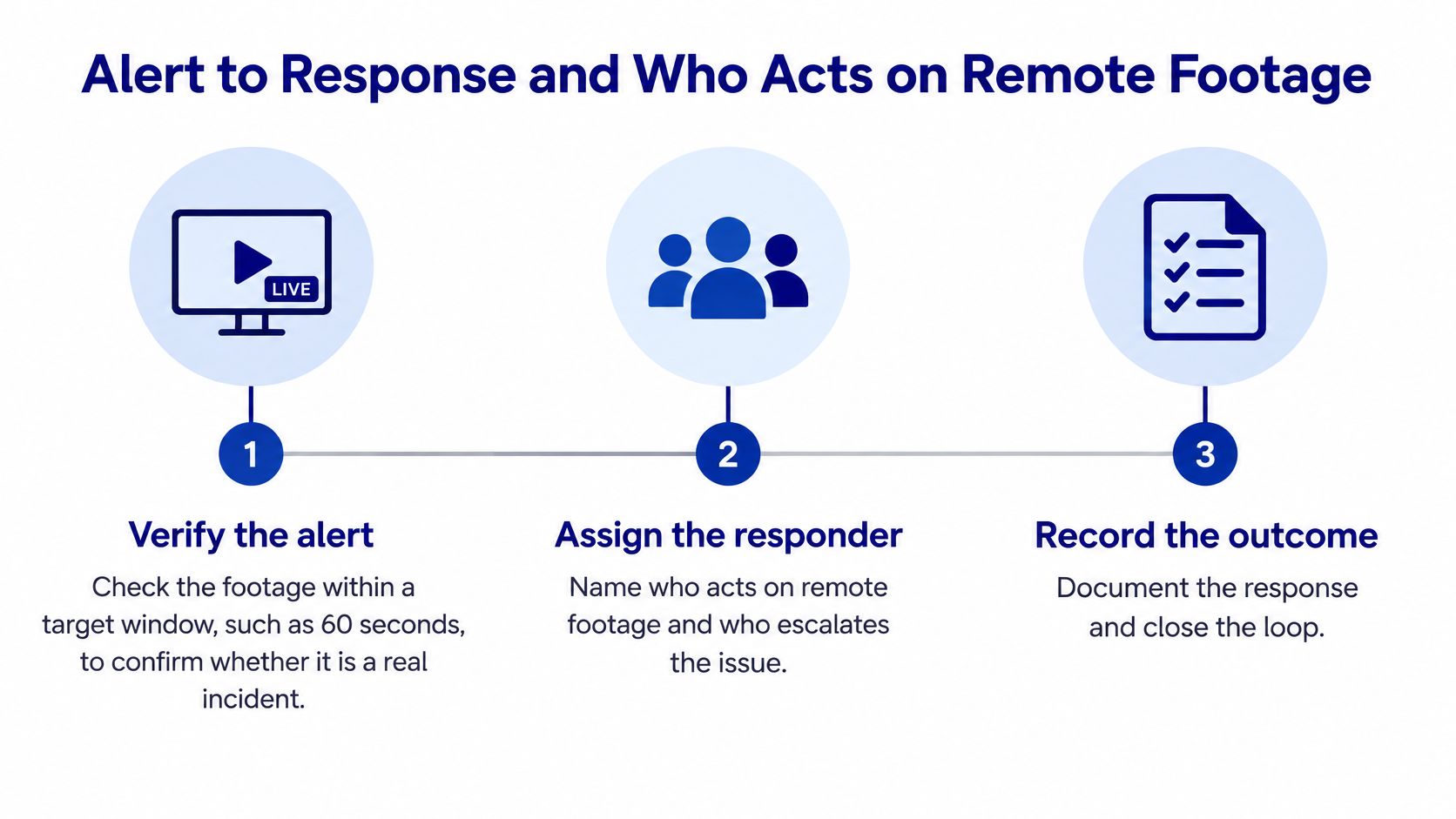
Watching a feed becomes incident response only when three things line up: an operator with authority to act, reliable site information and a responder who understands what the escalation means. Remote viewing works as an access-control and response system; the camera is the easy part.
The monitoring role carries defined duties beyond screen access: verify what triggered the alarm, log the event and escalate to supervisors, police or fire services when a breach or fire is detected. Anyone holding viewing rights without those duties holds a window, not a responsibility.
Assign responsibility before an alert arrives
Use a documented physical security incident response plan and build the roster around who watches, who decides and who attends. A workable sequence:
- Verify the alert. Check the correct camera and live situation against an agreed verification window.
- Log the event. Record time, camera location and a plain description of what is visible.
- Preserve evidence. Export relevant footage with a chain-of-custody record and, where supported, a file hash for integrity checking.
- Notify the nominated contact. Use the duty contact for that hour, since an alert sent to an unattended general inbox sits unread while the site stays exposed.
- Dispatch the responder. Send an onsite officer or Mobile Patrols when the documented threshold is met.
- Escalate emergencies. Contact police or emergency services for violence, fire or forced entry without delaying urgent help for routine administration.
- Close the record. Document the outcome and explain false alarms so detection settings can be corrected.
Context decides what an alert means. At a Brisbane shopping centre, a loading-dock activation late at night often turns out to be an authorised delivery, so the operator needs the delivery schedule and a contact able to confirm access before anyone is dispatched. At a Perth event venue, a gate alarm during a crowded night needs Event Security personnel who can attend safely while the operator checks adjacent camera views. Remote viewing directs the response; someone still has to physically intervene.
Decide who takes action when no one internal is on site. A facility manager can hold viewing rights and the duty phone, yet if no one is rostered to attend, the alert relocates the problem to a sleeping person's mobile. A monitored service fills that gap: ABCO's CCTV monitoring combines alarm verification and dispatch with its mobile patrol network, so a confirmed alarm can generate a patrol response without the site arranging its own after-hours coverage.
A failed feed means lost visibility. Treat it as a fault that needs checking, and treat the site as uncovered until the view is restored.
Define an outage procedure that assigns a patrol to check the affected site, with urgency set by the site's risk level and any other working sensors. Review time to verify, time to dispatch and false alarms per camera each month, and split operator delay from travel time so the report shows whether the fix sits with the monitoring desk or the responder roster.
Fix Common Remote Viewing Faults
A feed that disappears after a power cut or internet outage needs a structured check. The router may not have recovered, the recorder may have received a different address, or the remote gateway may still be unavailable.
Check local recording separately from outside access. Restarting everything immediately can erase useful fault information and make an intermittent problem harder to diagnose.
Remote viewing symptoms, causes and fixes
| Symptom | Likely cause | Fix |
|---|---|---|
| Feed drops every evening | Router restarts or camera receives a new IP address | Reserve fixed addresses and set an alert when a device goes offline |
| Live view freezes or lags | Total camera bitrate exceeds upload speed | Lower the viewing sub-stream resolution and check upload capacity at peak times |
| Login fails after an update | Expired certificate or changed MFA device | Re-enrol MFA through the administrator and check the device clock |
| Night footage is grainy | Dirty lens, faulty IR cut filter or poor lighting | Clean the lens, test night mode and adjust the lighting |
| Alerts flood the phone | Motion zones cover footpaths or roads | Redraw zones and set sensitivity by time of day |
| Recording shows blank frames | Storage full or recorder fault | Check storage capacity, review recording status daily and replace faulty drives |
| Unknown login in the audit log | Shared account or leaked password | Revoke sessions, rotate the password and enforce MFA on all accounts |
Treat these as diagnostic starting points, not proof of the cause. For example, a full recorder configured for normal overwrite should continue recording, so inspect overwrite settings, disk health and recording schedules before replacing hardware.
Maintain evidence capture, not just the picture
Use a planned maintenance rhythm:
- Monthly firmware review: Check the device register against supported releases and plan controlled updates.
- Quarterly access review: Reconcile authorised users with current duties and employment status.
- Annual physical inspection: Clean lenses and test night mode, with more frequent cleaning for dusty or exposed locations.
- After every software update: Play back a known event and test export.
- Daily recording-status review: Check storage faults, missing footage and recording exceptions.
A camera that reconnects but records blank frames is particularly dangerous because staff may assume evidence exists. Open a recent recording rather than relying on a green device-status icon.
Log every fault, corrective action and test result in the site register. During the monthly review, identify repeated failures by device, connection and software version instead of accepting recurring restarts as a permanent fix.
Where Remote Viewing Pays Off for Facility Managers
Remote viewing earns its place when it supports a defined operational task. A manager occasionally checking an app is a different service from staffed monitoring with an agreed response duty.
The strongest applications connect a useful camera view with information the operator can act on.
Match coverage to the operational need
- Retail Security and Shopping Centre Security: Verify loading-dock activity, after-hours access and incidents across entrances without requiring the manager to attend every location.
- Construction Security: Combine perimeter views, solar camera towers and gate logs to document unauthorised entry and support insurance evidence.
- Strata and residential communities: Focus on car parks and common areas while avoiding unnecessary views into private residences.
- Concierge Security and Gatehouse Security: Compare visitor records with entrance footage to resolve access disputes and confirm deliveries.
- Event Security: Verify gate incidents and crowd movement so onsite supervisors can allocate personnel to the correct location.
Cloud-connected systems can simplify multi-property viewing, but retail governance still needs care. The Retail Property Australia submission published by the OAIC discusses cloud CCTV concerns involving security use, deletion and footage needed for investigations.
For properties in Melbourne, Sydney, Brisbane and Perth, including surrounding cities within a 200km planning radius, assess each location's actual patrol travel route and connectivity. A radius on a map isn't a response-time commitment.
Build a return calculation from records
Consider a hypothetical construction site with three after-hours theft incidents in a quarter. Verified alerts may help distinguish authorised activity from incidents requiring attendance, while preserved footage can support an insurer's assessment. Don't count every alert as a theft prevented.
Use this illustrative formula:
Annual saving = incidents avoided × average loss + guard hours replaced × hourly cost + value of faster claims − annual system and monitoring cost.
Populate the inputs from the previous 12 months of incident reports, invoices, rosters and claims correspondence. Label any estimate separately from an observed cost.
Only include guard hours that can be removed without weakening required physical coverage. Likewise, count faster claims only where there's a documented financial benefit, not because a clip was available.
If avoided incidents can't be substantiated, leave that benefit out and test whether the remaining operational savings justify the investment. A budget calculation built on optimistic guesses won't support a sound procurement decision.
Choose a Provider and Confirm Your Setup
Apply the same acceptance criteria whether an in-house team or an external provider installs the system. The useful deliverable is a written operating arrangement, not a demonstration on the installer's phone.
Get written answers about hosting, access records, verification targets, dispatch responsibility and the licences relevant to the work.
Provider selection criteria for remote viewing
| Criterion | What to ask | Warning sign |
|---|---|---|
| Data hosting | Where footage is stored and whether it is backed up in Australia | Region not stated in writing |
| Encryption | Whether streams and stored recordings are encrypted | Encryption described only as secure or proprietary |
| Access model | Named accounts, MFA and role-based permissions | Shared logins or no export restrictions |
| Audit logs | Who viewed or exported footage, and how long logs are kept | Logs cannot be exported or reviewed |
| Response times | Target time to verify, dispatch and notify | No written targets or no escalation contact |
| Licensing | State security licence status for monitoring and dispatch staff | Licence numbers unavailable on request |
Don't accept a national service description as proof of local attendance capability. Confirm the actual arrangements for each property, especially regional sites and locations with difficult after-hours access.
Submit evidence for assessment
Send the site plan, camera list, measured connection results and acceptance-test records. For a multi-site portfolio, include test results from contrasting locations rather than presenting only the best-connected building.
If you're comparing options under Security Company Melbourne, assess the same operational criteria you would use elsewhere. ABCO Security Services Australia has offices in Melbourne, Sydney, Adelaide, Perth and Brisbane.
Our Electronic Security service covers end-to-end integration of surveillance, access control, video analytics and remote-viewing technology. Our A1 CCTV & Alarm Monitoring provides 24/7 live monitoring with immediate response and incident escalation, alongside mobile patrol and construction security capabilities.
Contact our team by phone on (03) 9001 0024 or email info@abcosecurity.com.au. Start the discussion with the off-site acceptance test rather than a camera count, and request a written assessment of architecture, access responsibilities and response targets.
ABCO Security Services Australia offers integrated electronic security, CCTV and alarm monitoring, and coordinated physical response for sites that need more than remote pictures. Visit ABCO Security Services Australia to request a site assessment, bringing your camera plan and acceptance-test results so the discussion addresses access, recording reliability and who acts when an alert arrives.
about
avada factory
Sempery ultricies nibh at dolor cras urna eleifend nec. Atiam efficitur tempor.